
To Allow IBR Veeam Backup & Replication Server network access to a recovered VM:
- On the VBR server provided by Cloud IBR:
- Open PowerShell or Command Prompt and run
ipconfig. - Find the NIC that has an RFC1918 IP address. (In the example below the adapter is Backend.3 with address 10.0.0.99)
- The “.3” suffix on the adapter name indicates the VLAN it is a member of.
- The VLAN tag can be different in each recovery.
- Open PowerShell or Command Prompt and run
- In the ESXi Management Interface:
- Right click the VM you want to access
- Select Edit Settings
- Change the Network Adapter(s) to the private port group with the matching VLAN tag and ending in “VM”. In this case it’s “private.3.VM.”
- Click Save
- On the VBR server provided by Cloud IBR:
- Go to the Control Panel -> Network and Internet ->Network and Sharing Center -> Change Adapter Settings
- Right Click on the adapter in Step 1 and open the Properties. (the example is Backend.3)
- Click on Internet Protocol Version 4 (TCP/IPv4) -> Properties -> Advanced
- Click Add (Add an IP address to the adapter in the same subnet as your target VM. The recommendation is to add an additional IP rather than replace the existing one.)


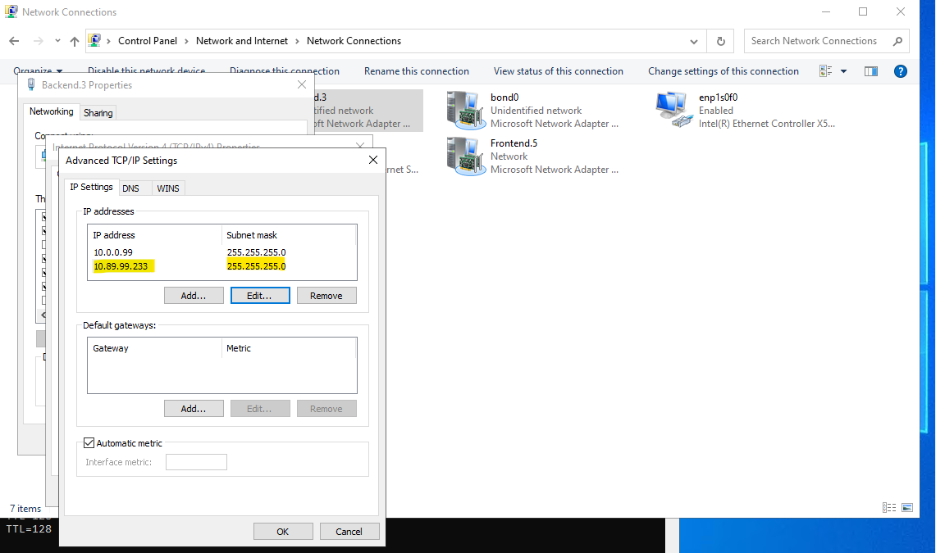
Once this is completed, VBR will have network access to the recovered VM.
Important Note: After you are finished using VBR network access, follow Step 2 to change the Network Adapter(s) back to the original private port group so the VM can access the same network as the rest of your servers.