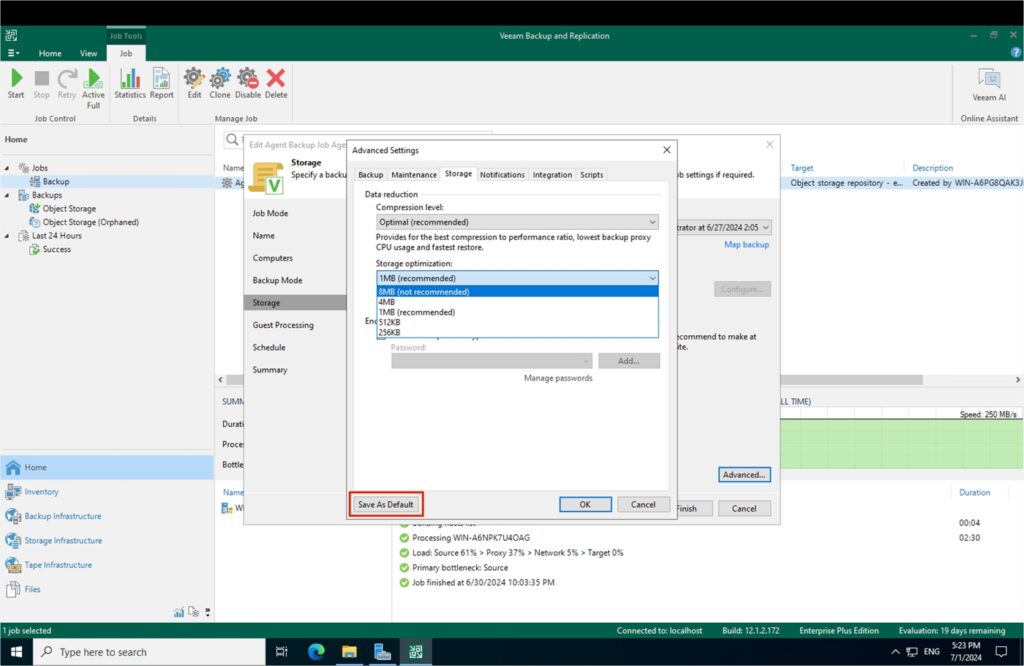
Increasing the block size you use when sending backups to Object Storage can dramatically decrease your RTO, making your recoveries run up to 2x faster. Using larger blocks may also increase your usage within your Object Storage repository.
Adjust the block size in the storage optimization settings
Veeam Backup & Replication allows you to configure block sizes for each backup job, which can significantly impact deduplication efficiency and incremental backup size. By default, blocks are compressed, typically achieving a compression ratio of about 50%.
- Smaller blocks can enhance deduplication; they increase the number of calls to the object storage, potentially affecting performance.
- Larger blocks reduce the number of storage calls and can increase throughput to and from Object Storage, improving overall backup performance.
A minimum of 4 MB per block is recommended, as this significantly limits the number of stored objects on the target bucket.
Note: Changing the block size on an existing backup job will create a new full backup during the next execution of the job.
Enable 8 MB blocks for best performance
For optimal performance with Object Storage, we recommend using 8 MB blocks. These blocks are unavailable in the interface by default and must be enabled via a registry key by following these steps on the Veeam server that you use to backup your production servers:
- Open the Registry Editor.
- Navigate to Computer\HKEY_LOCAL_MACHINE\SOFTWARE\Veeam\Veeam Backup and Replication.
- Add a new DWORD (32-bit) value named UIShowLegacyBlockSize.
- Set the value of UIShowLegacyBlockSize to 1.
Result: The 8 MB blocks are now available in the Veeam interface.
Change the storage optimization setting
To change the storage optimization setting, follow these steps:
- Click the Backup section under Jobs.
- Select the required backup job, right-click on it, and choose Edit in the menu.
- Click Storage > Advanced and change the tab to Storage.
- In the Storage optimization drop-down list, choose 8 MB marked as “not recommended”. Disregard this mark as it is the correct choice. This option must be there if you modify the registry setting as described in the previous section. Do not use a block size less than 4 MB.
- Click Save as default at the bottom of the Advanced Settings screen.
Result: The new storage configuration is saved as the default setting. This will ensure the settings are automatically used for any new backup jobs created.